
Skip to content

Markups & Annotations

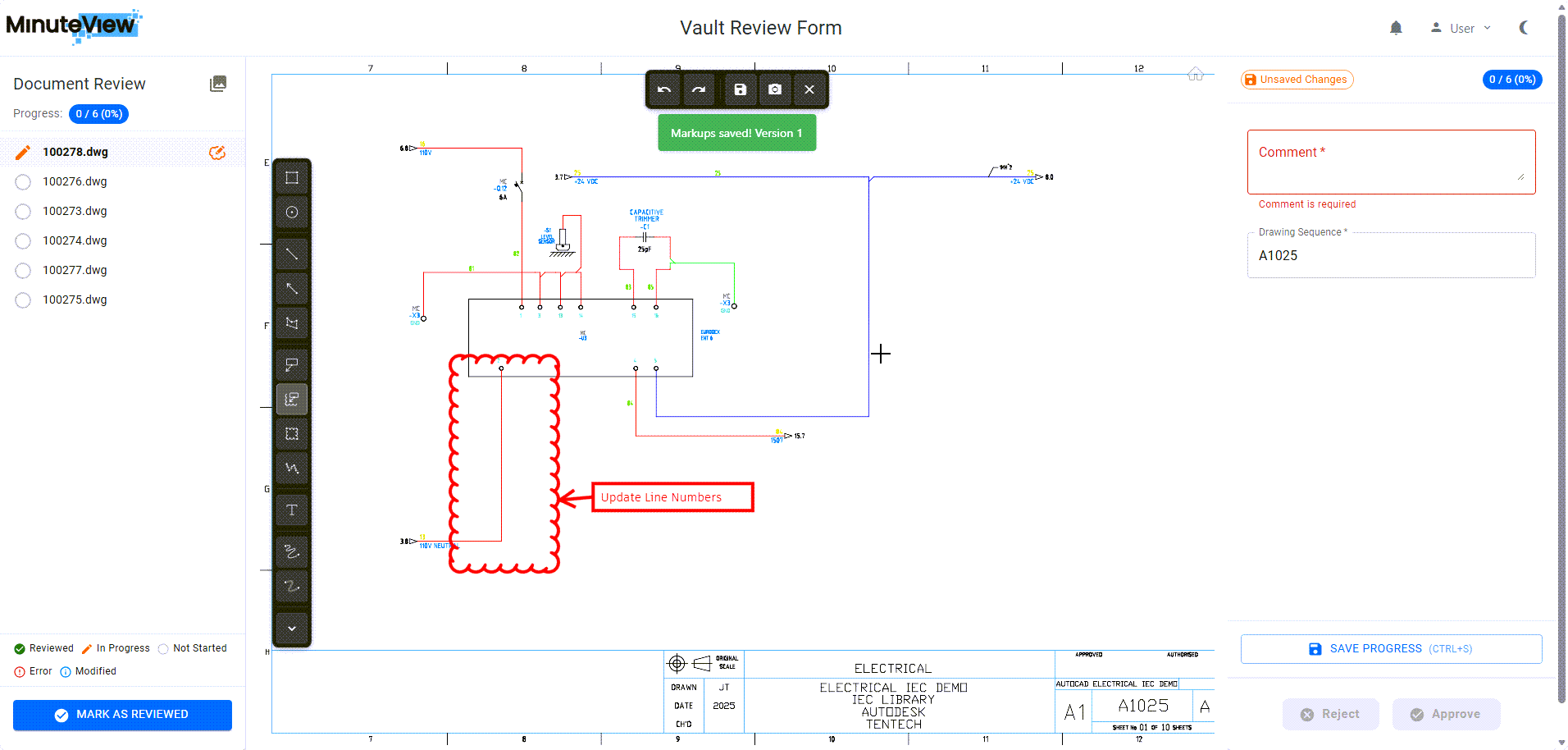
Markup Example

Overview

Markup tools allow you to add visual annotations directly on drawings and documents. Markups provide clear, unambiguous feedback that's easier to understand than text descriptions alone.


Accessing Markup Tools

Toolbar Location

Markup tools are located in the review environment toolbar:

  • Top of screen (most common)
  • Left side panel
  • Floating toolbar (some configurations)

Tool Visibility

Tools display when:

  • Viewing a markup-supported artifact (DWG, PDF, etc.)
  • In review mode
  • User has permission to add markups

Available Markup Tools

Freehand Pen

Purpose: Draw freehand lines and shapes

Use for:

  • Circling areas
  • Drawing arrows
  • Underlining text
  • Custom shapes

How to use:

  1. Select pen tool
  2. Choose color (if supported)
  3. Click and drag to draw
  4. Release to complete

Shapes

Rectangle:

  • Box around areas
  • Highlighting sections
  • Boundary indicators

Circle/Ellipse:

  • Circling items
  • Highlighting points
  • Area indicators

Arrow:

  • Pointing to specific items
  • Direction indicators
  • Attention markers

Line:

  • Connecting points
  • Dimension indicators
  • Reference lines

How to use:

  1. Select shape tool
  2. Click start point
  3. Drag to end point
  4. Release to complete

Text Annotation

Purpose: Add text notes directly on artifacts

Use for:

  • Explanatory notes
  • Callouts
  • Labels
  • Detailed comments

How to use:

  1. Select text tool
  2. Click placement location
  3. Type your text
  4. Click outside to finish

Best practices:

  • Keep text concise
  • Use clear font size
  • Position for readability
  • Avoid covering important details

Highlight

Purpose: Highlight text or areas with semi-transparent color

Use for:

  • Emphasizing text
  • Marking sections
  • Color-coding issues

How to use:

  1. Select highlight tool
  2. Choose color
  3. Drag over area to highlight
  4. Release to apply

Cloud/Revision Cloud

Purpose: Traditional revision cloud marking

Use for:

  • Marking change areas
  • Indicating revisions needed
  • Standard engineering markup

How to use:

  1. Select cloud tool
  2. Click points to define cloud boundary
  3. Double-click or click start to close
  4. Cloud automatically forms around points

Measurement (If Available)

Purpose: Measure distances or areas on drawings

Use for:

  • Verifying dimensions
  • Checking spacing
  • Area calculations

How to use:

  1. Select measurement tool
  2. Click start point
  3. Click end point
  4. Measurement displays

Stamp (If Available)

Purpose: Add predefined stamps

Common stamps:

  • Approved
  • Rejected
  • Reviewed
  • For Information
  • Confidential

How to use:

  1. Select stamp tool
  2. Choose stamp type
  3. Click to place on artifact

Markup Properties

Color

Most tools support color selection:

  • Red: Issues, problems, rejections
  • Green: Approvals, good
  • Yellow/Orange: Warnings, questions
  • Blue: Information, notes
  • Black: General markup

Color best practices:

  • Use consistent color coding
  • Red for required changes
  • Yellow for suggestions
  • Green for approval indicators

Line Weight/Thickness

Adjust line thickness:

  • Thin: Detailed markup
  • Medium: Standard use
  • Thick: Emphasis, visibility

Transparency

Some tools support transparency:

  • Full opacity: Maximum visibility
  • Semi-transparent: Show underlying content
  • Adjust based on need

Working with Markups

Selecting Markups

Click any markup to select it:

  • Selection handles appear
  • Properties editable
  • Can move, resize, or delete

Moving Markups

  1. Select markup
  2. Drag to new location
  3. Release to place

Resizing Markups

  1. Select markup
  2. Drag corner/edge handles
  3. Release when sized correctly

Deleting Markups

Options:

  • Select and press Delete key
  • Right-click → Delete
  • Use eraser tool

Editing Markups

  1. Select markup
  2. Modify properties (color, size, etc.)
  3. Edit text (for text annotations)
  4. Changes apply immediately

Undo and Redo

Undo Last Markup

Keyboard: Ctrl + Z (or Cmd + Z on Mac)

Button: Undo button in toolbar

Effect: Removes last markup action

Redo

Keyboard: Ctrl + Y (or Cmd + Y on Mac)

Button: Redo button in toolbar

Effect: Restores undone action

Multiple Undo

  • Most systems support multiple undo levels
  • Continue pressing Ctrl+Z to undo further back
  • History depth varies by implementation

Markup Best Practices

Clarity

  • ✅ Be specific about location
  • ✅ Use clear, legible annotations
  • ✅ Don't obscure important information
  • ✅ Use appropriate tool for the task

Consistency

  • ✅ Use consistent colors for similar issues
  • ✅ Similar line weights
  • ✅ Consistent annotation style
  • ✅ Standard terminology

Completeness

  • ✅ Mark all issues found
  • ✅ Don't assume submitter will understand
  • ✅ Be thorough but not excessive
  • ✅ Supplement with text comments if needed

Professionalism

  • ✅ Use professional language
  • ✅ Avoid emoji or casual text
  • ✅ Be constructive, not critical
  • ✅ Focus on actionable feedback

Common Markup Scenarios

Indicating a Change Needed

Approach:

  1. Use revision cloud around area
  2. Add text annotation explaining change
  3. Use red color for visibility
  4. Add arrow pointing to specific item

Example: Cloud the dimension, add text "Change to 25.5mm"


Approving a Section

Approach:

  1. Add green checkmark or circle
  2. Add text "Approved" or "OK"
  3. Use stamp if available

Example: Green circle with "Approved - JT"


Asking a Question

Approach:

  1. Use yellow/orange color
  2. Add text annotation with question
  3. Circle or arrow to specific item

Example: Yellow text "Is this material correct?"


Marking Multiple Issues

Approach:

  1. Number each issue
  2. Add corresponding text annotations
  3. Use consistent colors
  4. Provide clear descriptions

Example:

  • Red cloud "1"
  • Text "1. Dimension incorrect, should be 15mm"

Markup Persistence

Saving Markups

Automatic save:

  • Most systems auto-save markups
  • Saved when capture completed
  • Persist in capture record

Manual save (if supported):

  • Save button to manually persist
  • Ensure markups saved before closing

Viewing Historical Markups

  • Previous markups visible in timeline
  • Can view markup history
  • See who added which markups
  • Timestamp on markups

Markup Ownership

  • Markups associated with user who created them
  • Visible to all who can view capture
  • May support editing own markups only

Advanced Markup Features

Layering

If supported:

  • Multiple markup layers
  • Show/hide layers
  • Organize by reviewer or type

Comparison Markups

When comparing versions:

  • Automatic difference highlighting
  • Manual comparison markups
  • Color-coded changes

Collaborative Markups

Multiple reviewers:

  • Each reviewer's markups in different color
  • View by reviewer filter
  • Combine feedback from multiple sources

Troubleshooting

Markup Tools Not Available

Check:

  • Are you viewing supported file type?
  • Do you have permission to add markups?
  • Is artifact loaded correctly?
  • Try refreshing page

Markups Not Saving

Check:

  • Network connection
  • Browser compatibility
  • Complete capture action (don't just close)
  • Check browser console for errors

Can't Select/Edit Markups

Check:

  • Are they your markups? (may only edit own)
  • Is capture still editable?
  • Try clicking directly on markup
  • Use selection tool if available

Markups Not Visible

Check:

  • Markup layer visibility toggled off?
  • Zoom level appropriate?
  • Color contrast with background?
  • Refresh artifact view

Tips for Effective Markup

Combine with Comments

  • Use markups for specific visual feedback
  • Use comments for overall observations
  • Reference markup locations in comments
  • Provide complete feedback package

Think About the Recipient

  • Will they understand your markup?
  • Is it clear what action is needed?
  • Have you provided enough context?
  • Is feedback constructive?

Review Your Markups

Before completing capture:

  • Review all markups added
  • Ensure they're clear and accurate
  • Check for completeness
  • Verify all issues marked

Next Steps

After adding markups:

Tentech