

Search K
Appearance
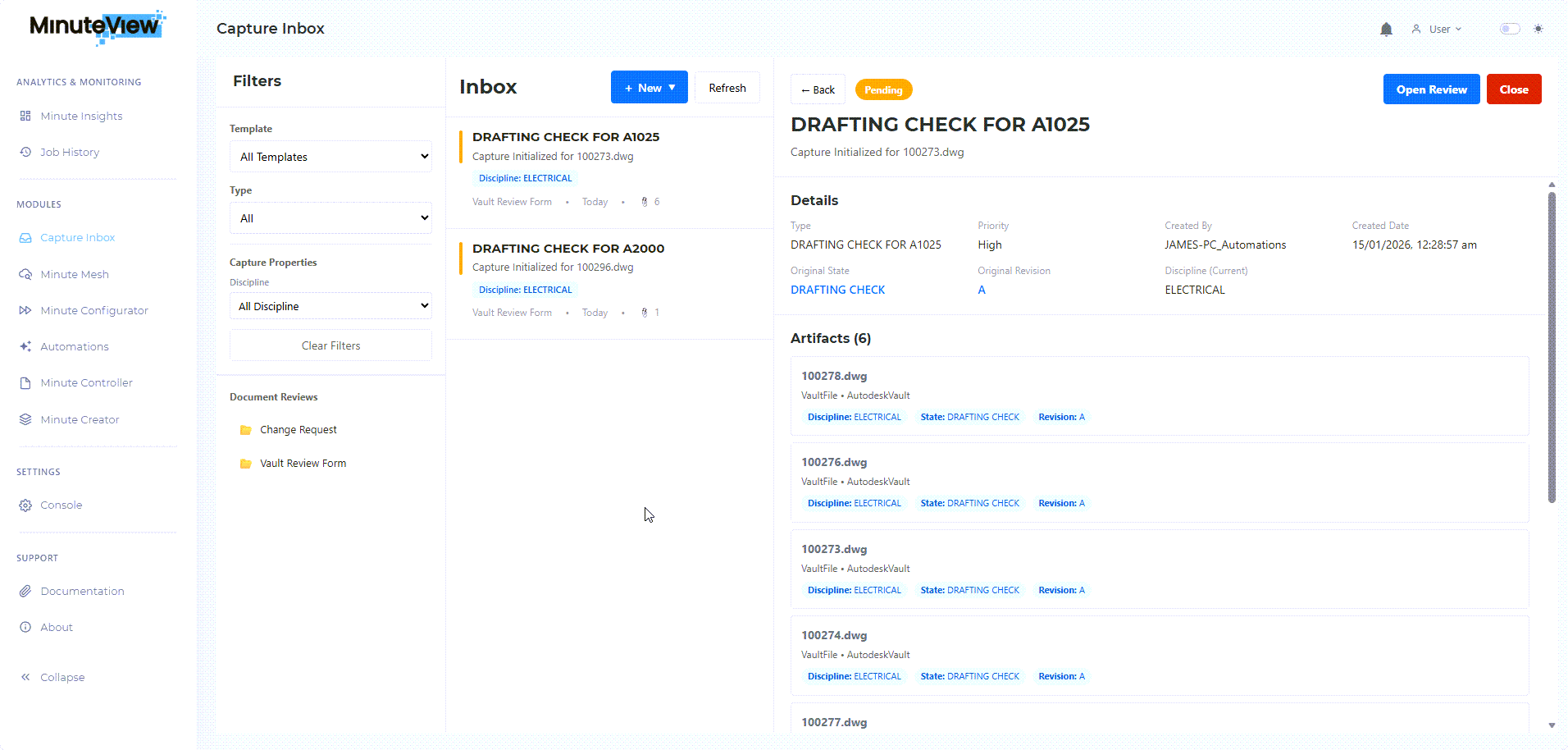
The Capture Inbox is your central hub for viewing and managing all captures that require your attention. It displays captures you have permission to access, organized for easy navigation and action.
Access the Capture Inbox from:
The inbox displays only captures you have permission to view, based on:
Capture List:
Filter Controls:
Action Buttons:
Default columns typically include:
Click any column header to sort:
Click a row to:
Use template dropdown to show:
Use when: You want to focus on one type of capture
Filter by capture state:
Use when: You want to see captures in specific stages
If template has filterable fields:
Use when: You need specific captures based on metadata
Text search box searches across:
Use when: You know partial name or identifier
Multiple filters work together:
Click on any capture row to view:
Click Create New or New Capture button:
See Creating Captures for details.
Some implementations support bulk operations:
Check your MinuteView version for bulk support.
Status Colors:
Icons:
Note: Visual indicators depend on configuration and environment version
Captures may display badges:
Inbox may auto-refresh periodically:
Click Refresh button to:
Some implementations allow customizing:
Check with administrator if customization is available.
Some systems support saved filter configurations:
May include preferences for:
As Submitter:
As Reviewer:
Check status of captures you're tracking:
Review and handle completed captures:
You may receive email when:
Notification settings configured by administrator.
Inbox may show notification badges:
Possible reasons:
Try:
Check:
If inbox is slow:
From the inbox, you'll typically: