

Search K
Appearance
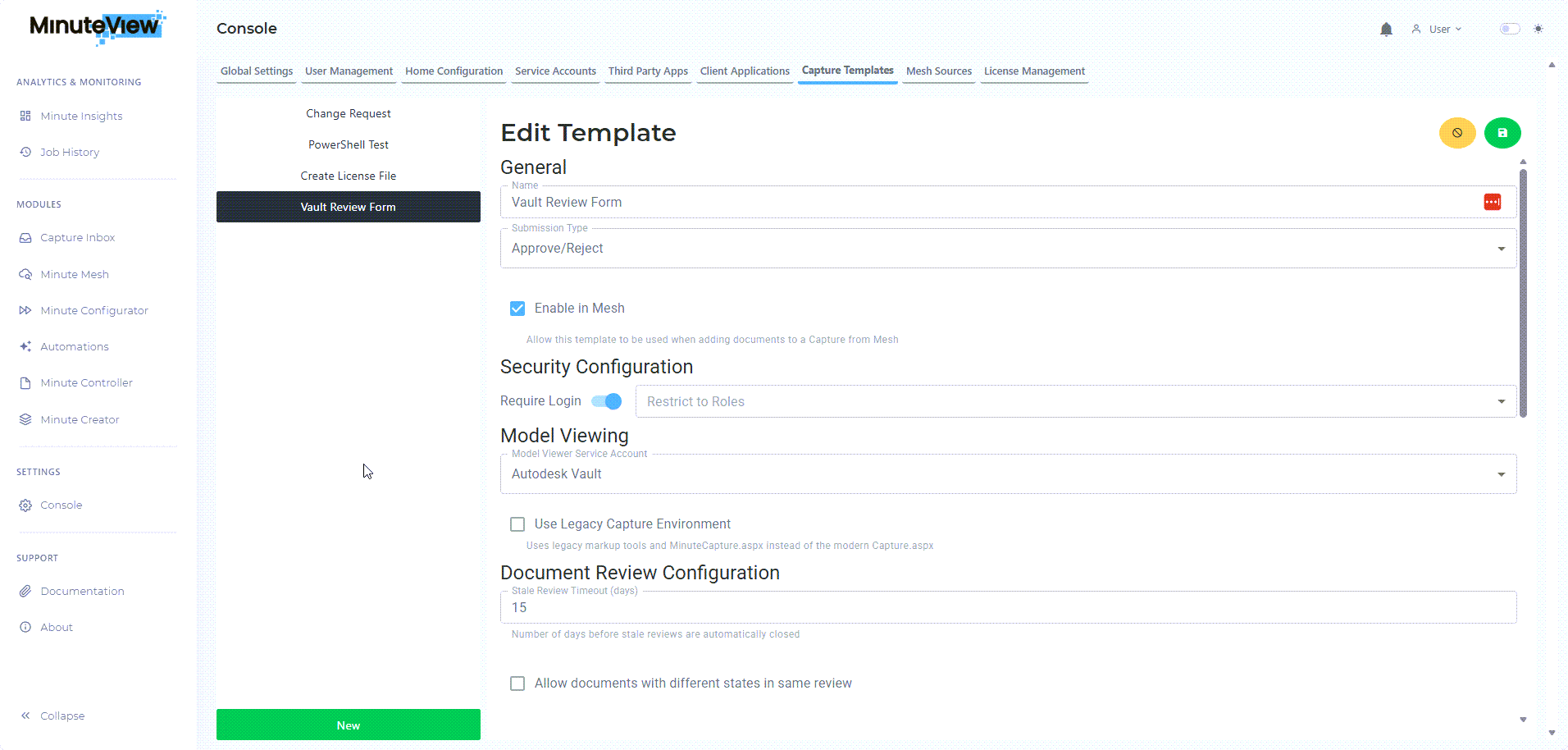
Capture Templates define how captures behave, who can access them, and what actions occur when a capture is submitted, approved, or rejected.
Think of templates as blueprints that control every aspect of the capture experience:
All Capture Template configuration is performed in:
Console → Capture Templates
From this interface, administrators can:
Every template requires:
Controls who can:
Security is role-based and integrates with MinuteView's user management system.
Templates define which metadata fields are:
Determines how associated files are:
Templates can be configured to:
Automation that runs:
Can be PowerShell scripts or MinuteView workflows.
Submission Type: Submit
Typical Configuration:
Use Cases:
Submission Type: Approve/Reject
Typical Configuration:
Use Cases:
Submission Type: Approve/Reject
Typical Configuration:
Use Cases:
Define requirements:
Build the template in Console:
Validate configuration:
Enable for production use:
Ongoing management:
Use clear, descriptive names that indicate:
Good: "Engineering Drawing Review - External Approval" Bad: "Template 3" or "Review Form"
Begin with minimal configuration:
Add complexity based on actual usage patterns, not anticipated needs.
Plan role assignments carefully:
Security changes can impact existing captures, so plan ahead.
Always create test captures to verify:
Maintain documentation of:
| Setting | Purpose | Options |
|---|---|---|
| Submission Type | How captures are completed | Submit, Approve/Reject |
| Enable in Mesh | Allow creation from Mesh | Yes/No |
| Capture Environment | UI version to use | Legacy, Modern |
| Stale Days | When to mark captures as stale | Number of days |
| Model Viewing Account | Service account for viewing files | Service account selection |
Now that you understand templates, learn how to create one: