

Search K
Appearance
Use the MicroStation PDF Publisher settings to configure a Job that publishes PDF files from MicroStation DGN files.
Bentley MicroStation must be installed on any Job Processor that will handle DGN file publishing. The MicroStation PDF Publisher drives the MicroStation application directly to produce PDF output, using plot configuration (.pltcfg) files to control the appearance of the published PDF.
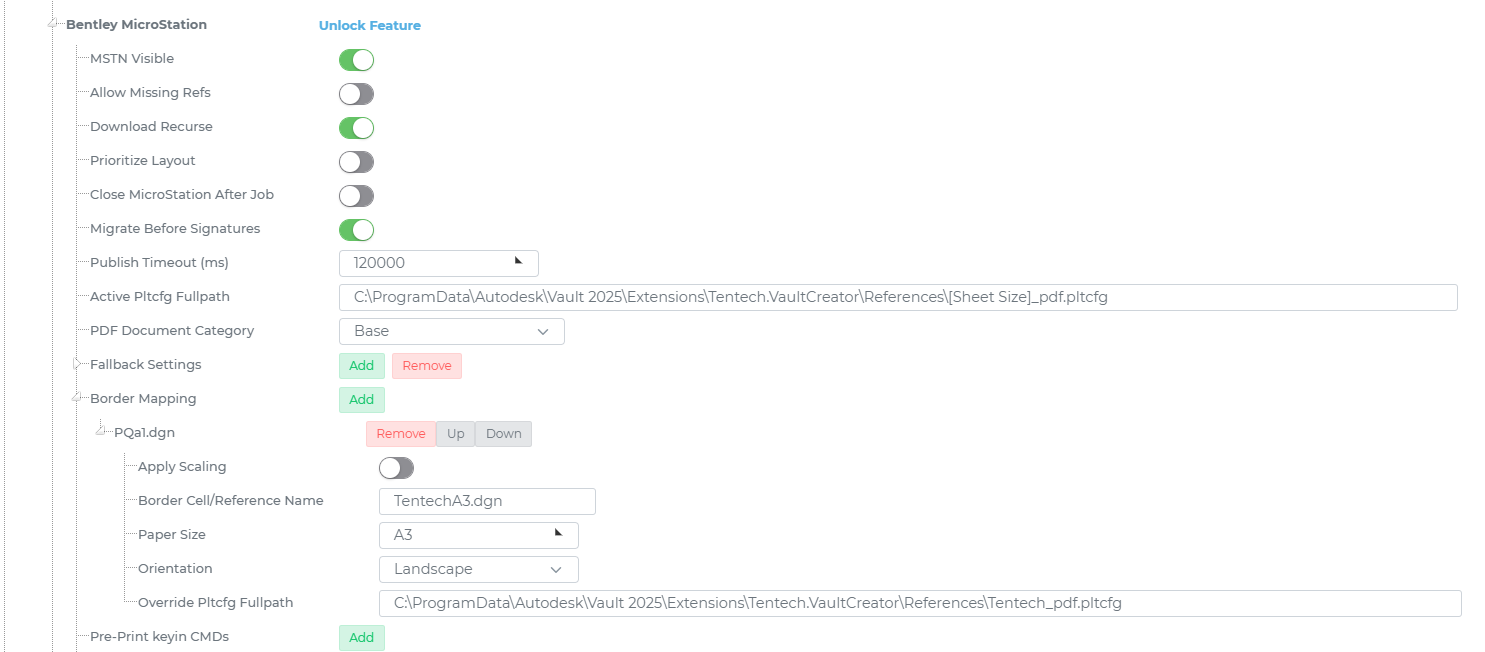
Set the full path to the MicroStation plot configuration (.pltcfg) file on the Job Processor. This file controls the plot settings used when publishing PDFs, such as paper size, colour handling, and line weights.
C:\ProgramData\Bentley\MicroStation\WorkSpace\System\plotdrv\pdf.pltcfgTIP
Property values from Vault can be used within this path. For example, [Sheet Size] can be substituted at runtime to select a plot configuration file that matches the drawing's sheet size property.
Set the Vault Category to be assigned to the published PDF file.
When enabled, the MicroStation application window will be visible on screen during processing.
Note
This setting is intended for troubleshooting and diagnostics only. Leave this disabled in production environments to avoid UI interference with Job Processor operations.
When enabled, the Job will continue and attempt to publish a PDF even if one or more referenced DGN files (X-Refs) cannot be found or resolved.
When disabled, a missing reference will cause the Job to fail with an error.
TIP
Enable this setting if your drawings contain references to files that may not always be present in Vault, such as standard title block libraries or shared resource files that are managed outside of the Vault workflow.
When enabled, Minute Creator will follow and download the full reference hierarchy of the DGN file before publishing. This ensures that nested references (references of references) are all available locally on the Job Processor.
Disable this setting only if reference files are already available locally on the Job Processor and do not need to be retrieved from Vault.
When enabled, MicroStation Sheet (layout) models are published as the primary output. If one or more Sheet models are found in the DGN file, they will be used and the default model will be ignored.
When disabled, all models are treated equally and processed in order.
TIP
Enable this setting for drawings that follow a standard sheet-based workflow, where Sheet models contain the finalised drawing content intended for publication.
When enabled, the MicroStation process is fully closed and restarted between each Job. This ensures a clean application state for every publication but increases processing time.
When disabled, MicroStation remains open between Jobs where possible, which speeds up processing for high-volume workloads.
TIP
Enable this setting if you are experiencing instability or unexpected errors during batch processing, as accumulated application state between Jobs can sometimes cause issues with complex DGN files.
The time in seconds before the running Job's MicroStation background process is forcibly terminated if it has not completed. This prevents a locked or crashed MicroStation instance from blocking the Job Processor indefinitely.
TIP
Increase this value when processing very large or complex DGN files that may take longer than usual to publish.
Specify one or more local directory paths on the Job Processor where MicroStation resource files are stored, such as cell libraries, font files, and plot driver resources. These directories are made available to MicroStation during the publish process to help resolve references and fonts correctly.
Add each directory path as a separate entry.
Specify MicroStation key-in commands to execute before the PDF is printed. These commands run within MicroStation prior to publishing and can be used to apply settings or adjustments to the drawing at print time.
Provide additional MicroStation configuration variables as key/value pairs. These are applied to the MicroStation environment before the DGN file is processed, allowing fine-grained control over application behaviour without modifying the MicroStation workspace directly.
Cell Mappings define how MicroStation border cells within a DGN are mapped to specific paper sizes and plot configurations at publish time. Each Cell Mapping entry targets a specific MicroStation cell name found within the drawing and applies the configured output settings when that cell is detected.
Click the green Add button to create a new Cell Mapping entry and configure the following fields:
The name of the MicroStation cell to match against. This must exactly match the cell name as it appears within the DGN file.
The paper size to use when this cell is detected. Enter the paper size name as defined in the MicroStation plot driver.
Set the paper orientation for this cell mapping.
Optionally specify a different .pltcfg file to use for this specific cell, overriding the global Plot Configuration File Path setting.
When enabled, the publish process will apply scaling based on the cell's detected boundary extents when producing the PDF for this cell mapping.
The Fallback Settings define what Minute Creator should do if no Sheet models or Cell Mappings can be matched within the DGN file. Instead of failing, the Job will fall back to producing a PDF from the drawing using a zoom-extents method.
Important
If the Fallback Settings are not configured and no matching layouts or cells are found, the Job will return an error. Configure Fallback Settings to handle drawings that may not follow the expected sheet or cell structure.
When enabled, the fallback process will first attempt to produce a PDF from any available layout model before using the zoom-extents method.
When enabled, the fallback will produce a PDF by fitting the drawing to the specified paper size using zoom extents. This is useful for drawings that do not contain Sheet models or identifiable border cells.
The paper size to use for the fallback PDF output.
Set the paper orientation for the fallback output.
The full path to the .pltcfg file to use for the fallback PDF output.
When enabled, a log entry is written whenever the fallback method is used during a Job. This is useful for identifying drawings that are not following the expected structure.