

Search K
Appearance
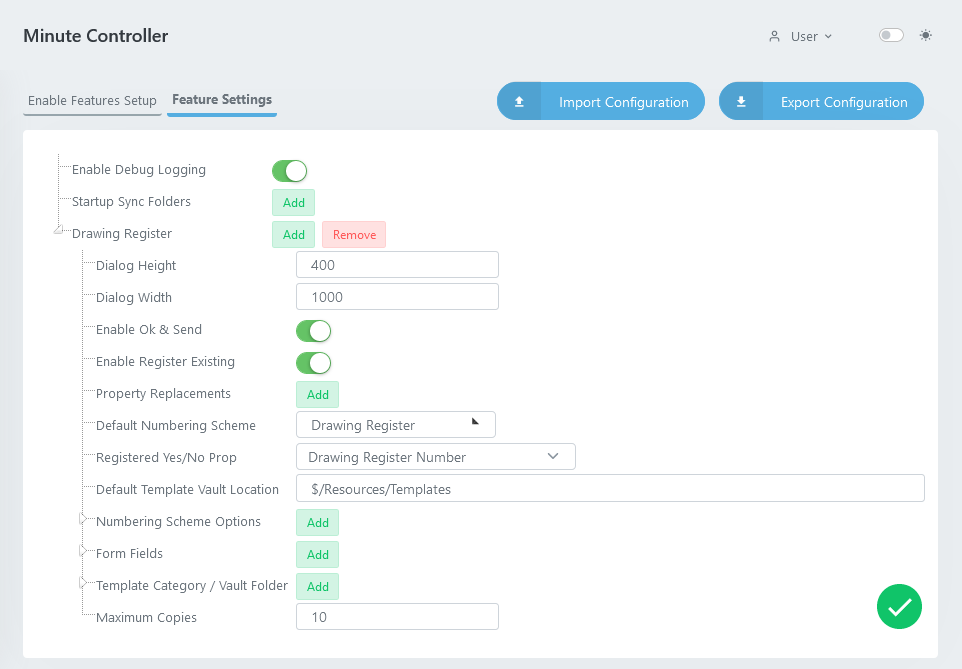
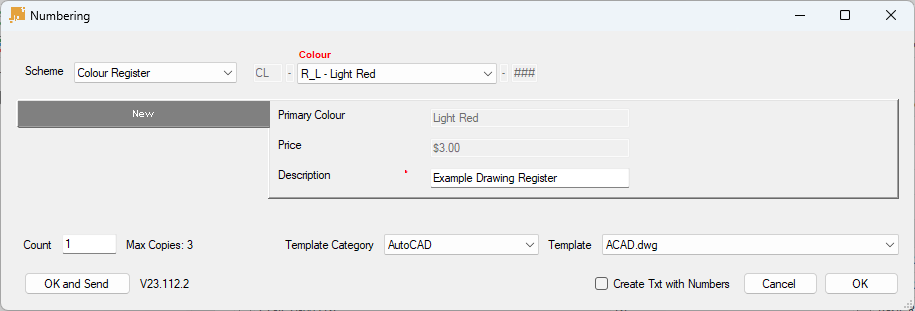
The overall height of the "Numbering" form. A minimum value of 400 is recommended to cater for 3 dynamic fields.
The overall width of the "Numbering" form. A minimum value of 1000 is recommended to cater for the 300 default length of dynamic fields.
Enable Features Setup.Enables the OK & Send button. This Ok & Send workflow prompts the user with a draft Transmittal form containing the names of drawings/files from the Numbering form session, and is used as an alternative workflow to the default OK button which does not invoke the transmittal workflow. Users can not generate a Transmittal via the Drawing Register if this Enable Ok & Send feature setting is disabled.
TIP
When configuring the Drawing Register to work with the Transmittal feature, refer to the Minute Controller log file for settings feedback if the Transmittal form fails to show.
C:\TEMP\TTGENERALLOGS\2026-04-25_DocControlGeneral_DebugLog.txtAllows for the modification of existing Vaulted Files.
Click the green Add button to create a new custom property with mapped values to be used by other Drawing Register features, such as the Initial Setup Value of a form field.
Each newly created property and its configuration are saved within a PropReplacements object.
The name of the new property that's to be used by other features. When a property is to be called from within a feature, it needs to be nested within square brackets. For example, a property named custom_myValue must be called as [custom_myValue] from the feature.
TIP
Recommend to give Property Replacements Names a standard prefix so they can be more easily identified and used when needed.
The input concatenation may contain one or more Vault properties that's to be used as the source of the new mapped property. This property must be nested within square brackets, for example, were the Vault Property Name be required as the input, then it would be typed as [Name].
System Properties are available for use as an input property.
TIP
Advanced users may even devise a matrix of values to be mapped, by using one or more Vault properties with text and delimitors as the input. [Name]-[Category] for example.
The Existing Input Property value is represented in the Key column, and the desired mapping in the Value column.
As an example, take a user defined Vault property Colours. The key value of Colours could contain Dark Red, Light Red and Bright Red, and the value of each of these inputs could be Red. Meaning that if Colours equals any of those advanced colours, they will be mapped into simply Red.
A more relative example, the Existing Input Property is set to the Vault Property [Name] , which will return the name of the folder selected when launching the Drawing Register. The value of Name might be;
All of which then need to be mapped//changed into another value, for example, a Vault Directory;
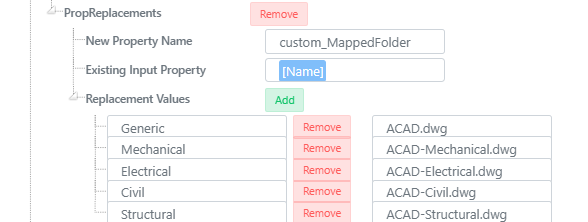
The result being, that if [Name] contains Civil then [custom_MappedFolder] will return $/Designs/Civil.
Select the default Vault Numbering Scheme to be used by the Numbering/Drawing Register application.
INFO
The desired Default Numbering Scheme must be defined within the Numbering Scheme Options list as an option.
A Vault Text Property that determines whether the document has been registered. This field is optional. Note that this field needs to use a Vault Text field type, and returns True.
Enter in the Template Category specified and the desired file within the associated Vault Folder location to load as the default, separated by a | pipe symbol.
Example;
AutoCAD|ACAD.dwgA relative category and/or file may also be used, for example;
[Name]|[custom_DefaultFile].dwgThe above example is using the Vault Folder Name to define the Category (so that if the Drawing Register is launched by right-clicking a folder named AutoCAD, then [Name] will return AutoCAD) a pipe symbol | followed by a custom users Property Replacement mapping called [custom_DefaultFile] that maps AutoCAD from [Name] into ACAD, and then finally concatenated with .dwg.
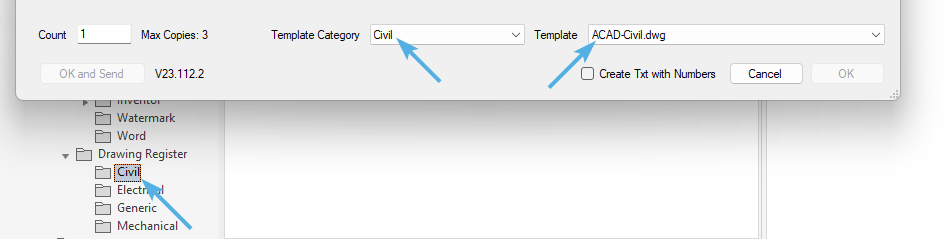
Note that when using advanced concatenation techniques within Default Template Category and File, that all locations must still be preloaded within Template Category / Vault Folder. Without a pre-programmed location, the dynamic concatenation will return blank.
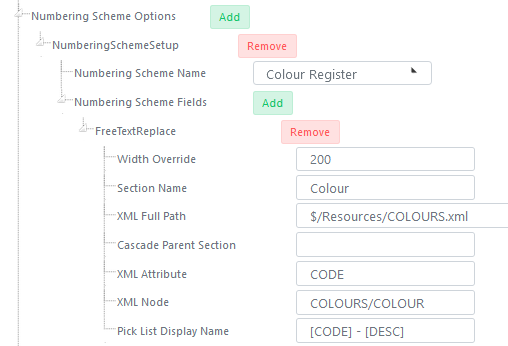
Multiple Numbering Schemes can be made available for use in the Drawing Register application. Create and configure a new Numbering Scheme Setup options to select in the Numbering/Register applications Numbering Scheme pick list.
INFO
The defined Default Numbering Scheme must also be defined within this Numbering Scheme Options list.
Select the Vault Numbering Scheme to be used by the Numbering/Drawing Register application.
Click the green Add to create a new FreeTextReplace object, then click the small arrow to expand and configure the Free Text Replace fields.
Set the width of the Numbering Scheme form field. 200 is recommended.
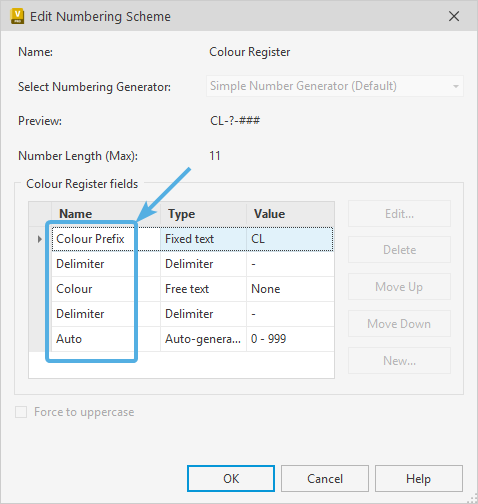
Set the name of the Numbering Scheme Field Section that these Free Text Replace options are targeting.
TIP
Multiple Free Text Replace can be defined for more complex Vault Numbering Schemes. Create however many Numbering Scheme Fields as needed.
WARNING
The Section Name and associated chained settings that call upon Section Name are case sensitive.
The Vaulted path of the reference XML file to be used as the field lookup.
Typically the XML files should be stored within a Vault Resources folder.
$/Resources/COLOURS.xmlThe Numbering/Register tool supports multiple attributes for lookup, as per the below sample XML data.
<?xml version="1.0" encoding="utf-8" ?>
<COLOURS>
  <COLOUR CODE="R"      DESC="Red"          PRICE="$1.00"/>
  <COLOUR CODE="R_D"    DESC="Dark Red"     PRICE="$21.00"/>
  <COLOUR CODE="R_L"    DESC="Light Red"    PRICE="$3.00"/>
  <COLOUR CODE="G"      DESC="Green"        PRICE="$141.00"/>
  <COLOUR CODE="G_D"    DESC="Dark Green"   PRICE="$11.00"/>
  <COLOUR CODE="G_L"    DESC="Light Green"  PRICE="$66.00"/>
  <COLOUR CODE="B"      DESC="Blue"         PRICE="$3.00"/>
  <COLOUR CODE="B_D"    DESC="Dark Blue"    PRICE="$45.00"/>
  <COLOUR CODE="B_L"    DESC="Blue Light"   PRICE="$63.00"/>
  <COLOUR CODE="WH"     DESC="White"        PRICE="$7.00"/>
  <COLOUR CODE="BK"     DESC="Black"        PRICE="$10.00"/>
</COLOURS>An optional field that's only required when creating child/parent dependant Pick Lists. The Parents Section Name is placed here.
The name of the XML attribute to be written into the file name. Using the above XML sample, the CODE attribute would be suitable.
The XML Node that's traversed to construct the lookup field data. Using the above XML sample;
COLOURS/COLOURThis will allow for the attributes to return as a lookup into a Form fields dynamic field settings.
Specify a concatenation of the XML data to display in the register/numbering applications Numbering Scheme pick list. Using the above XML example;
[CODE] - [DESC]This will display all the selectable XML options as;
"R - Red"
"R_D - Dark Red"
"R_L - Light Red"
"G - Green"
"G_D - Dark Green"
"G_L - Light Green"
"B - Blue"
"B_D - Dark Blue"
"B_L - Blue Light"
"WH - White"
"BK - Black"Create and configure a new Dynamic Field to be used within the Drawing Register. Field types include;
Each field can be uniquely configured within the Dynamic Field settings below.
The resulting input will be set in Uppercase.
Enables the input field to be editable. (This setting may not always be applicable, such as when returning XML attribute data from a lookup)
The Dynamic Fields displayed label.
The fields input value will map into the set Vault Property.
The Value Concatenation field allows for the chained concatenation of system variables with specified values and their piped value.
Take the below example;
[NumbSchemeField_Colour|DESC]NumbSchemeField refers to Numbering Scheme Fields_ is the system chaining symbolColour is the name specified in Numbering Scheme Section NameDESC is the property value returned from the referenced XML File of that Numbering Scheme. Other XML attributes found within the referenced file are also usable.Create and configure a new fieldReplace object.
Set the width of the XML pick list field. 150 is generally recommended.
The name of the value to be called upon when used as a Parent field, to display XML data in a linked child field.
Either the Vaulted path or full file path of the reference XML file to be used as the field lookup.
Typically the XML files should be stored within a Vault Resources folder.
<?xml version="1.0" encoding="utf-8" ?>
<COLOURS>
  <COLOUR CODE="R"      DESC="Red"          PRICE="$1.00"/>
  <COLOUR CODE="R_D"    DESC="Dark Red"     PRICE="$21.00"/>
  <COLOUR CODE="R_L"    DESC="Light Red"    PRICE="$3.00"/>
  <COLOUR CODE="G"      DESC="Green"        PRICE="$141.00"/>
  <COLOUR CODE="G_D"    DESC="Dark Green"   PRICE="$11.00"/>
  <COLOUR CODE="G_L"    DESC="Light Green"  PRICE="$66.00"/>
  <COLOUR CODE="B"      DESC="Blue"         PRICE="$3.00"/>
  <COLOUR CODE="B_D"    DESC="Dark Blue"    PRICE="$45.00"/>
  <COLOUR CODE="B_L"    DESC="Blue Light"   PRICE="$63.00"/>
  <COLOUR CODE="WH"     DESC="White"        PRICE="$7.00"/>
  <COLOUR CODE="BK"     DESC="Black"        PRICE="$10.00"/>
</COLOURS>
TIP
XML files may also be formatted with nested options, such as the below alternative example;
<?xml version="1.0" encoding="UTF-8"?>
<colours>
    <colour name="Red">
        <shade number="1" name="Dark Red"></shade>
        <shade number="2" name="Light Red"></shade>
    </colour>
    <colour name="Blue">
        <shade number="3" name="Deep Blue"></shade>
        <shade number="4" name="Navy Blue"></shade>
    </colour>
</colours>An optional field that's only required when creating child/parent dependant Pick Lists when using nested XML data. The Section Name value of the parent field is placed here (within the child field).
The name of the XML attribute to be written into the file name. Using the above XML sample, the name attribute of the <colour> element would be suitable.
The XML Node that's traversed to construct the lookup field data. Using the above XML sample;
/colours/colourLeave the Pick List Display Name blank within the Dynamic Field settings. The XML data will be used as the display name.
INFO
Pick List Display Name is only supported within the Numbering Scheme Options
The width of the text field. Typically 200 works for most scenarios.
Adds maximum character input validation to the Dynamic Field.
Adds minimum character input validation to the Dynamic Field.
Adds input requirement validation to the Dynamic Field.
Specify the available Template Categories and their corresponding Vault Folders containing Template Files.
The active Template Category / Vault Folder may be automatically selected for use based on the Default Category Template and File, so long as it's been defined within this list.
Note
Importantly, the Vault Properties and the assigned Vault category of the template files will carry through to the generated file. If generated files contain unwanted values or an incorrect category, please check the template file.
The Template Category value to represent the name of the templates located in the Vault Folder
AutoCADThe Vault Folder assigned to the Template Category.
Example;
$/Resources/Templates/AutoCADTemplates are required within each specified Vault Folder for use with the Drawing Register.
The maximum number of files that can be generated during the execution of the Numbering/Register tool.
The following system properties are available for use as the Existing Input Property:
Take the given Vault path;
$/Designs/Creator/AutoCAD/Example Drawing.dwg
The following returns from the use of the above variables;
Folder Path
[Folder_FolderPath_1] = $[Folder_FolderPath_2] = $/Designs[Folder_FolderPath_3] = $/Designs/Creator[Folder_FolderPath_4] = $/Designs/Creator/AutoCAD[Folder_FolderPath_5] = *blank*Folder Name
[Folder_FolderName_1] = $[Folder_FolderName_2] = Designs[Folder_FolderName_3] = Creator[Folder_FolderName_4] = AutoCAD[Folder_FolderName_5] = *blank*Click Edit Powershell to add a post-script that executes as the final stage of the Numbering Tool file set creation process. The script executes against each file generated. In this example, the script is returning the file name sequence that was generated and applied to the file name, and is then writing it into the files Vault Property - where it's then syncronised to display within the files titleblock.
Returned properties of the wsObject include;
NewFileName: The file name applied to the generated drawing based off of the schema.properties: The properties assigned to the last generated drawing that were applied during the file set configuration through the Drawing Register application.vFolder: The properties returned from the target folder where the file set has been created.ExistingFile: Boolean indicating if the file was existing prior.ToRegister: Boolean indicating if the Register Drawing check-box was enabledSelectedSchema: The active schema used for the drawing generation.Sample PowerShell Script for use with Numbering.
# $wsObject - Variable contains the file object last generated by the Drawing Register.

try{
  $fileNameWithoutExtension = [System.IO.Path]::GetFileNameWithoutExtension($wsObject.NewFileName)
  $wsObject.properties["Drawing No."] = $fileNameWithoutExtension
# Select Status - "NEW DRAWING", or "Work In Progress".
}
catch{
}